
As technology advances, we are constantly looking for ways to enhance our digital experiences. One of the latest trends is connecting a laptop to a TV, and with the rise of smart TVs, it’s become easier than ever before. If you’re the proud owner of a Mi TV 4A and want to connect your laptop to it, you’re in luck! In this article, we’ll walk you through the steps to connect your laptop to your Mi TV 4A.
Connecting your laptop to your Mi TV 4A can open up a whole new world of entertainment possibilities. You can stream your favorite movies, watch videos, play games, and even make presentations on a big screen. Whether you’re a movie buff or a gamer, connecting your laptop to your TV is a game-changer. So, let’s get started and learn how to connect your laptop to your Mi TV 4A!
- Turn on your laptop and Mi TV 4a.
- Connect the laptop and TV with an HDMI cable.
- Change the input source on your TV to HDMI.
- Your laptop screen will now be mirrored on your TV.
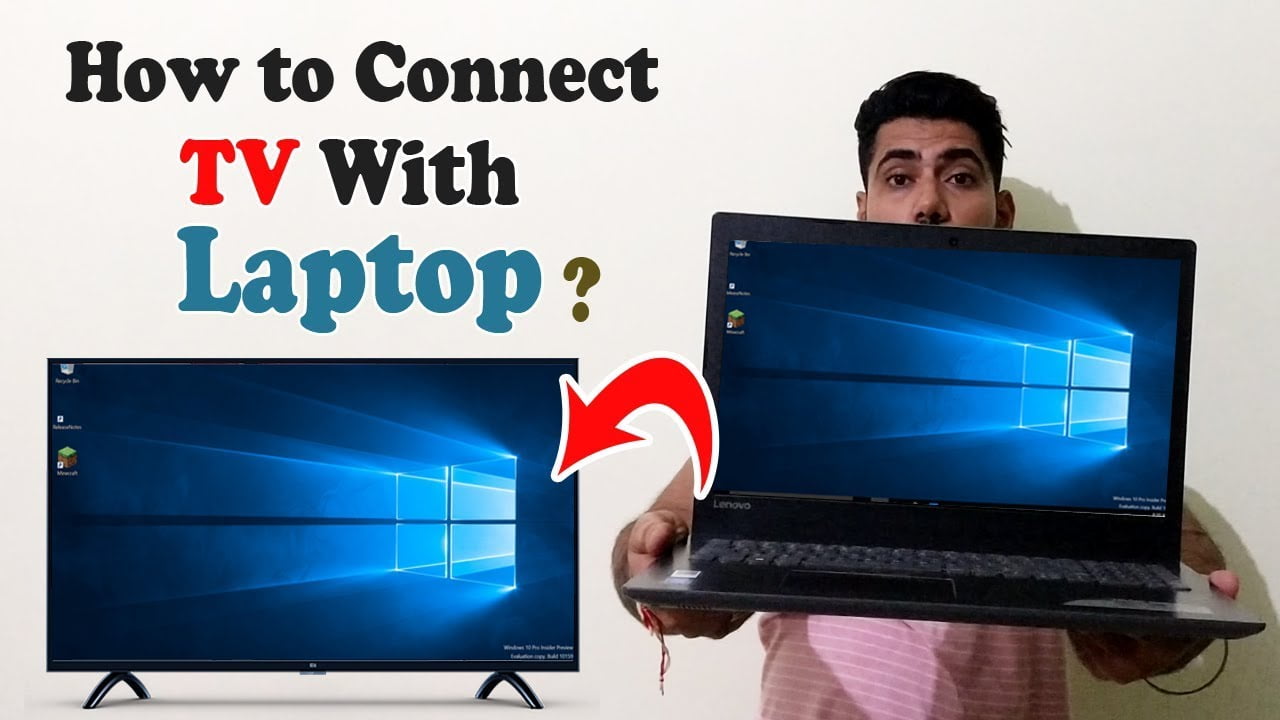
How to Connect Laptop to Mi Tv 4a?
Connecting your laptop to your Mi TV 4a is a great way to enjoy your favorite movies, TV shows, and other media on a larger screen. However, the process of connecting a laptop to a TV can be a bit confusing for those who are not tech-savvy. In this article, we will guide you through the steps required to connect your laptop to Mi TV 4a, so you can enjoy your favorite content on a big screen.
Step 1: Check your laptop and Mi TV 4a Ports
Before connecting your laptop to your Mi TV 4a, the first step is to check the ports available on both devices. Most laptops have an HDMI port, while Mi TV 4a has multiple HDMI ports. Locate the HDMI port on your laptop and the HDMI port on your Mi TV 4a. Once you have identified the ports, you can move on to the next step.
Benefits of using HDMI port to connect laptop to Mi TV 4a:
- High-quality audio and video transmission
- Supports 1080p resolution and above
- Easy to connect and disconnect
Step 2: Connect your laptop to Mi TV 4a using HDMI cable
Once you have identified the HDMI ports on your laptop and Mi TV 4a, the next step is to connect the two devices using an HDMI cable. Connect one end of the HDMI cable to the HDMI port on your laptop, and the other end to the HDMI port on your Mi TV 4a. Make sure both devices are powered on and select the HDMI input on your Mi TV 4a.
Benefits of using HDMI cable to connect laptop to Mi TV 4a:
- Provides high-quality audio and video transmission
- Supports multiple audio and video formats
- Compatible with most laptops and Mi TV 4a
Step 3: Adjust your laptop display settings
Once your laptop is connected to your Mi TV 4a, you may need to adjust your laptop display settings to ensure the content is displayed correctly on the TV screen. To do this, go to your laptop’s display settings and choose the “Duplicate” option. This will display the content on both your laptop screen and your Mi TV 4a.
Benefits of adjusting laptop display settings:
- Ensures content is displayed correctly on the TV screen
- Provides a better viewing experience
- Allows you to use your laptop as a remote control
Step 4: Enjoy your content on a big screen
Now that you have successfully connected your laptop to your Mi TV 4a, it’s time to sit back, relax, and enjoy your favorite movies, TV shows, and other media on a big screen. You can use your laptop as a remote control to navigate through your content, adjust the volume, and more.
Benefits of using Mi TV 4a:
- Large screen size for an immersive viewing experience
- High-quality audio and video for a cinematic experience
- Smart TV features for easy access to online content
Conclusion
Connecting your laptop to your Mi TV 4a is a great way to enjoy your favorite content on a big screen. By following the steps outlined in this article, you can easily connect your laptop to your Mi TV 4a and enjoy high-quality audio and video transmission. Whether you’re watching movies, TV shows, or playing games, your laptop and Mi TV 4a can provide a cinematic experience that is sure to impress.
Key Takeaways: How to Connect Your Laptop to Mi TV 4A
- First, check that both your laptop and Mi TV 4A are connected to the same Wi-Fi network.
- Next, turn on your Mi TV 4A and navigate to the “Settings” menu.
- From the settings menu, select “Network & Internet” and then “Wi-Fi.”
- Select the Wi-Fi network you are currently connected to and take note of the IP address displayed on the screen.
- On your laptop, open the web browser and type in the IP address displayed on your Mi TV 4A.
- You should now be able to see your Mi TV 4A screen on your laptop. Enjoy!
Connecting your laptop to your Mi TV 4A can seem daunting at first, but it’s actually a straightforward process. By following these simple steps, you can easily share your laptop’s screen with your TV and enjoy all your favorite content on a larger screen. Just remember to check that both devices are connected to the same Wi-Fi network, and you’ll be streaming in no time!
How to Cast Your Laptop Display On Mi tv wirelessly | technoZee
Connecting your laptop to your Mi TV 4a can be a game-changer for your home entertainment system. Whether you want to stream movies, play video games or simply display a presentation for work, the process is relatively straightforward. By following the steps outlined in this guide, you can easily connect your laptop to your Mi TV 4a and start enjoying all the benefits of a larger screen.
In conclusion, connecting your laptop to your Mi TV 4a is a simple process that can elevate your home entertainment experience. With just a few steps, you can expand your screen size and enjoy your favorite content in high definition. By following the methods outlined in this guide, you can easily connect your laptop to your Mi TV 4a and take your viewing experience to the next level. So, why not give it a try and see what a difference it can make for you?