
Laptop batteries are an essential component of laptops that allow users to work on-the-go without being tethered to a power source. However, over time, the battery life of a laptop may start to deteriorate, causing it to hold less charge and eventually leading to the need for a replacement. To avoid such inconveniences, it’s important to regularly check the health of your laptop battery. One way to do this is by testing it with a multimeter.
A multimeter is a versatile tool used by electricians and DIY enthusiasts to measure electrical current, voltage, and resistance. It’s an excellent tool for testing the health of your laptop battery, and it’s relatively easy to use. In this article, we’ll take a closer look at how to test a laptop battery with a multimeter and provide you with step-by-step instructions to ensure you get accurate results. So, if you’re looking to extend the life of your laptop battery, read on to find out more!
- Turn off the laptop and unplug the AC adapter.
- Remove the battery from the laptop.
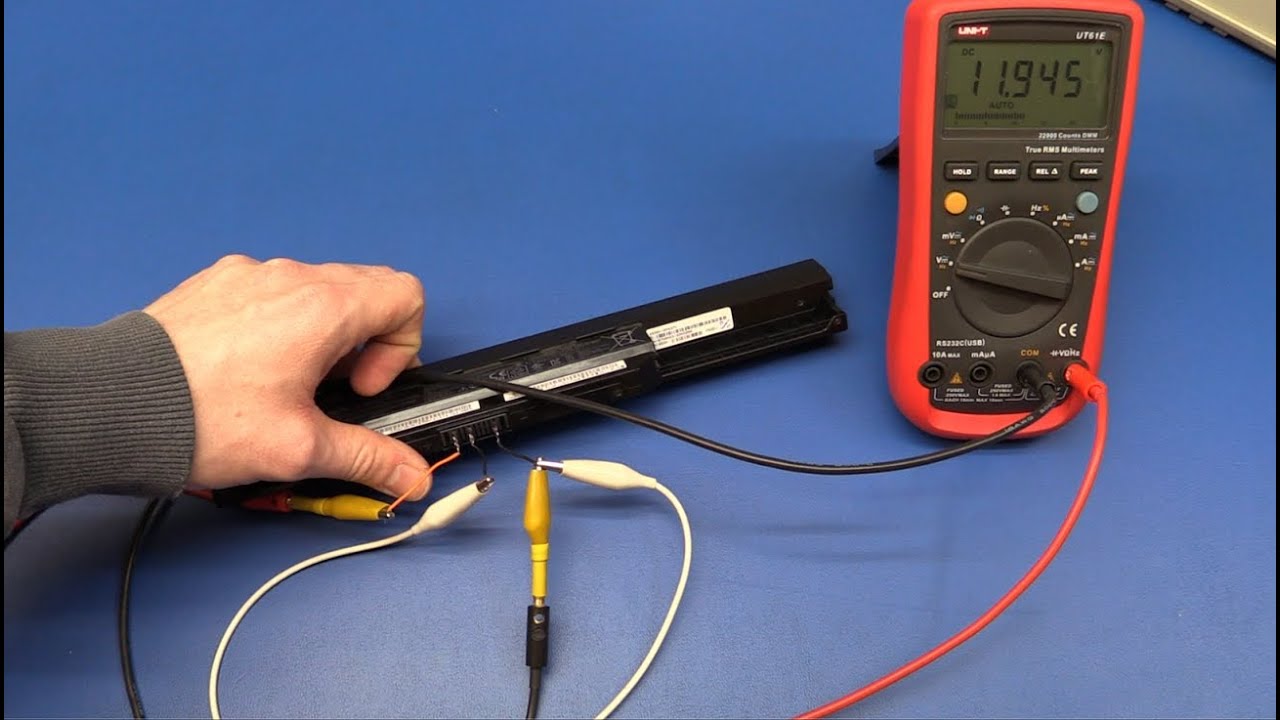
- Set the multimeter to measure DC voltage and touch the positive and negative ends of the battery with the multimeter probes.
- If the battery is fully charged, the multimeter should read 12.6 volts or higher. If the battery is not fully charged, the reading will be lower.
- If the multimeter reading is significantly lower than the expected voltage, the battery may be faulty and needs to be replaced.
Contents
- How to Test Laptop Battery With Multimeter: A Complete Guide
- What is a Multimeter?
- Step 1: Turn off the Laptop
- Step 2: Remove the Battery
- Step 3: Set the Multimeter to Measure Voltage
- Step 4: Connect the Multimeter to the Battery Terminals
- Step 5: Read the Multimeter Reading
- Step 6: Compare the Voltage Reading
- Step 7: Repeat the Test
- Step 8: Reinstall the Battery
- Step 9: Dispose of Faulty Batteries Properly
- Benefits of Testing a Laptop Battery with a Multimeter
- Laptop Battery Testing with a Multimeter vs. Other Methods
- Conclusion
- Key Takeaways: How to Test Laptop Battery With Multimeter?
How to Test Laptop Battery With Multimeter: A Complete Guide
If your laptop battery is not holding a charge or has stopped working altogether, you may need to test it with a multimeter. This guide will walk you through the process of testing your laptop battery with a multimeter, step-by-step.
What is a Multimeter?
A multimeter is a tool used to measure electric current, voltage, and resistance. It is commonly used by electricians, engineers, and DIY enthusiasts to diagnose and fix electrical problems. A multimeter has two probes, which are used to make contact with the electrical component being tested.
To test a laptop battery with a multimeter, you will need to set the multimeter to measure voltage.
Step 1: Turn off the Laptop
Before testing the battery, turn off your laptop and unplug it from the power source. This will ensure that there is no electrical current running through the battery or laptop.
Step 2: Remove the Battery
Next, remove the laptop battery from the laptop. This will allow you to test the battery separately from the laptop.
Step 3: Set the Multimeter to Measure Voltage
Set the multimeter to measure voltage by turning the dial to the voltage setting. The voltage setting is usually indicated by the symbol “V” on the dial.
Step 4: Connect the Multimeter to the Battery Terminals
Connect the red probe of the multimeter to the positive terminal of the battery and the black probe to the negative terminal. The positive terminal is usually indicated by a plus sign (+) and the negative terminal by a minus sign (-).
Step 5: Read the Multimeter Reading
Once the probes are connected to the battery terminals, turn on the multimeter and read the voltage displayed on the screen. The voltage reading should be around the voltage listed on the battery label.
Step 6: Compare the Voltage Reading
Compare the voltage reading to the voltage listed on the battery label. If the voltage reading is significantly lower than the listed voltage, the battery may be faulty.
Step 7: Repeat the Test
Repeat the test a few times to ensure that the voltage reading is consistent. If the voltage reading fluctuates, the battery may be faulty.
Step 8: Reinstall the Battery
If the battery passes the voltage test, reinstall it into your laptop and turn on your laptop. If your laptop still does not hold a charge, the problem may be with the laptop itself.
Step 9: Dispose of Faulty Batteries Properly
If the battery fails the voltage test, it is considered faulty and should be disposed of properly. Many electronics stores and battery manufacturers offer recycling programs for old batteries.
Benefits of Testing a Laptop Battery with a Multimeter
Testing a laptop battery with a multimeter can save you time and money by identifying faulty batteries before they cause damage to your laptop. It is a simple process that can be done at home with minimal equipment.
Laptop Battery Testing with a Multimeter vs. Other Methods
Testing a laptop battery with a multimeter is one of the most accurate methods of testing a battery’s voltage. Other methods, such as using a battery analyzer or testing the battery with a charger, may not provide as accurate results.
Conclusion
Testing a laptop battery with a multimeter is a quick and easy process that can help you identify faulty batteries before they cause damage to your laptop. By following the steps outlined in this guide, you can test your laptop battery with a multimeter and determine if it needs to be replaced. Remember to dispose of faulty batteries properly to minimize environmental impact.
Key Takeaways: How to Test Laptop Battery With Multimeter?
- Before testing the laptop battery with a multimeter, ensure that the battery is completely disconnected from the laptop and is not charging.
- You will need a multimeter, which is an electronic measuring instrument that can measure voltage, current and resistance. It is readily available at hardware stores and online.
- Set your multimeter to the DC voltage setting to measure the voltage of the battery. It should be set to the voltage range that is closest to the battery’s voltage.
- Connect the red probe of the multimeter to the positive terminal of the battery and the black probe to the negative terminal. The multimeter should display the voltage of the battery.
- The voltage of a healthy laptop battery should be around 11.1 to 12.6 volts. If the voltage is below this range, it may indicate that the battery is faulty and needs to be replaced.
- You can also use the multimeter to measure the resistance of the battery by setting the multimeter to the resistance setting. A healthy battery should show a low resistance value.
- Always be careful when handling a laptop battery and follow the manufacturer’s instructions for safe handling and disposal.
Testing a laptop battery with a multimeter is a simple and effective way to determine its health and whether it needs to be replaced. By following the above steps and taking necessary precautions, you can ensure that your laptop battery is in good condition and provides optimal performance.
How to Test a Laptop Battery – Ec-Projects
In today’s fast-paced world, our laptops have become an essential part of our daily lives. From work to entertainment, we rely heavily on them. However, there’s nothing more frustrating than being in the middle of an important task and having your laptop die on you due to a failing battery. That’s why it’s crucial to know how to test your laptop battery with a multimeter. By doing so, you can ensure that your laptop will always be ready when you need it the most.
In conclusion, testing your laptop battery with a multimeter is a simple yet effective way to ensure that your laptop’s battery is functioning correctly. By following the steps outlined in this guide, you can avoid the frustration of a dead battery and keep your laptop running smoothly. Remember, prevention is always better than cure, and investing a few minutes in testing your laptop battery can save you a lot of time and money in the long run. So, grab your multimeter and start testing your laptop battery today!