
When it comes to managing our contacts on social media platforms, it’s crucial to have control over who we connect with. However, on TikTok, syncing your contacts can sometimes lead to unwanted connections and potential privacy concerns. So, how can you unsync your contacts on TikTok and regain control over your network?
Unsyncing your contacts on TikTok is a straightforward process that ensures you have the power to choose who you connect with on the platform. By unsyncing your contacts, you can prevent TikTok from accessing your phone’s address book and stop suggestions for people to follow based on your contacts. This adds an extra layer of privacy and control to your TikTok experience, allowing you to curate your network according to your preferences.
If you want to unsync contacts on TikTok, follow these steps:
- Open the TikTok app on your device.
- Tap on the profile icon at the bottom right corner of the screen.
- Select the three-dot menu in the top right corner.
- Go to “Manage my account” and then tap on “Sync contacts.”
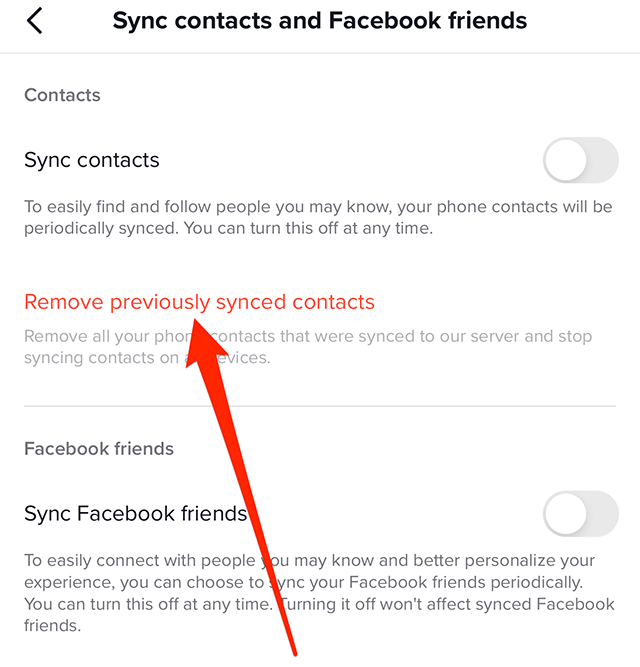
- Toggle off the switch next to “Sync contacts” to unsync them from your TikTok account.
Contents
Understanding the Basics of Contacts Syncing on TikTok
TikTok is a popular social media platform that allows users to create and share short videos. To enhance user experience and promote social connectivity, TikTok offers the option to sync your contacts with the app. By syncing your contacts, you can easily find and connect with your friends, family, and acquaintances who are also using TikTok.
However, there might be situations where you want to unsync your contacts on TikTok. This could be due to privacy concerns or simply because you no longer want your TikTok account to be linked with your phone’s contacts. Unsyncing your contacts on TikTok is a straightforward process that can be done in a few simple steps.
In this article, we will guide you through the process of unsyncing contacts on TikTok step by step, highlighting different methods and options available to you.
Let’s explore how you can easily unsync contacts on TikTok and regain control over your privacy and TikTok experience.
Method 1: Unsyncing Individual Contacts on TikTok
If you want to unsync specific contacts on TikTok while keeping other contacts synced, you can do so by following these steps:
Step 1: Open TikTok and Go to the “Profile” tab
To begin the process, open the TikTok app on your device and navigate to the “Profile” tab, which is usually located at the bottom right corner of the screen.
Step 2: Access the “Settings” Menu
Once you are on your profile page, look for the three dots or lines in the top right corner of the screen. Tap on it to access the settings menu.
Step 3: Go to “Manage My Account” and select “Sync Contacts”
In the settings menu, scroll down until you find the “Manage My Account” section. Tap on it to expand the options. Look for the “Sync Contacts” option and select it.
Step 4: Unsync the desired contact
On the “Sync Contacts” page, you will see a list of contacts that are currently synced with TikTok. To unsync a specific contact, simply toggle off the button next to their name. This will remove the contact from your synced contacts on TikTok.
Repeat this step for any other contacts you wish to unsync. Once you have unsynced all the desired contacts, you can exit the settings menu. The contacts you unsynced will no longer appear in your TikTok contacts list.
Method 2: Unsyncing All Contacts on TikTok
If you want to completely unsync all contacts on TikTok, you can follow these steps:
Step 1: Open TikTok and Go to the “Profile” tab
Launch the TikTok app on your device and navigate to the “Profile” tab by tapping on the profile icon at the bottom right corner of the screen.
Step 2: Access the “Settings” Menu
In the top right corner of your profile page, you will find three dots or lines. Tap on them to access the settings menu.
Step 3: Go to “Manage My Account” and select “Sync Contacts”
Scroll down the settings menu and locate the “Manage My Account” section. Tap on it to expand the options. Look for the “Sync Contacts” option and select it.
Step 4: Turn off the “Sync Contacts” toggle
On the “Sync Contacts” page, you will see a toggle next to the “Sync Contacts” option. Tap on the toggle to turn it off. This will unsync all contacts on TikTok and prevent the app from accessing your phone contacts.
Once you have turned off the toggle, you can exit the settings menu. Your contacts will no longer be synced with TikTok, and the app will not have access to your phone contacts.
Method 3: Disabling Contact Access on TikTok
If you want to prevent TikTok from accessing your contacts altogether, you can do so by following these steps:
Step 1: Open your device’s Settings
Go to your device’s settings menu by tapping on the gear icon or accessing it through the notification shade.
Step 2: Navigate to the “Privacy” Settings
In the settings menu, look for the “Privacy” option and tap on it to access privacy settings related to various apps.
Step 3: Find and select “Contacts”
Scroll down in the privacy settings until you find the “Contacts” option. Tap on it to view apps that have access to your device’s contacts.
Step 4: Disable TikTok’s access to your contacts
Locate TikTok in the list of apps with access to your contacts and toggle off the button next to it. This will revoke TikTok’s access to your contacts.
By disabling TikTok’s access to your contacts, you ensure that the app no longer has permission to sync or access your phone’s contact data.
Additional Tips for Managing Synced Contacts on TikTok
Unsyncing contacts is just one aspect of managing your TikTok account and ensuring your privacy. Here are some additional tips to help you manage your synced contacts on TikTok:
- Regularly review and update your synced contacts list on TikTok. Remove contacts that you no longer want to be connected with on the platform.
- Double-check your privacy settings on TikTok to ensure that your contact syncing preferences are set according to your preferences.
- If you ever change your mind and want to sync your contacts again on TikTok, you can follow the same steps mentioned earlier and toggle on the appropriate options.
- If you have any concerns about data privacy and TikTok, consider reviewing the app’s privacy policy to understand how your data is handled and secured.
By regularly reviewing and managing your synced contacts on TikTok, you can maintain control over your privacy and ensure that you are connected with the people you want on the platform.
Conclusion
Unsyncing contacts on TikTok is a straightforward process that allows you to regain control over your privacy. Whether you want to unsync specific contacts or disable contact access altogether, the steps provided in this article will guide you through the process. Remember to regularly review and update your synced contacts list on TikTok to maintain control of your connections on the platform.
Unsyncing Contacts on TikTok
If you want to unsync your contacts on TikTok, follow these steps:
1. Open the TikTok app on your device.
2. Go to your profile by tapping on the “Me” icon at the bottom right corner of the screen.
3. Tap on the three horizontal lines at the top right corner to open the menu.
4. Select “Settings and Privacy” from the menu.
5. Scroll down and tap on “Manage Contacts” under the “Privacy” section.
6. Toggle off the “Sync Contacts” option.
7. A confirmation prompt will appear. Tap on “Unsync” to confirm.
8. Your contacts will now be unsynced from TikTok.
By following these steps, you can easily unsync your contacts on TikTok and ensure your privacy and data security.
Key Takeaways – How To Unsync Contacts On Tiktok
- To unsync contacts on TikTok, go to your profile and tap on the three-dot icon in the top right corner.
- Choose “Privacy and safety” from the menu options.
- Tap on “Manage contacts” and toggle off the “Sync contacts” option.
- If you want to remove all synced contacts, tap on “Delete all contacts” and confirm.
- Remember that unsyncing contacts on TikTok only affects the app and not your device’s contacts.
In conclusion, unsyncing your contacts on TikTok is a simple process that can help protect your privacy and prevent unwanted syncing of your personal information. By following a few steps, you can ensure that your TikTok account is no longer connected to your contacts list.
First, navigate to your TikTok settings and locate the “Privacy and Safety” section. From there, you can disable the option to sync your contacts. Once this is done, TikTok will no longer have access to your contacts, and any information previously synced will be removed.